
Collaboration
5 Google Workspace Tips for More Efficient Team Meetings You Can Implement Immediately
June 8, 2025 • by Marcus Stober
Team meetings are the backbone of collaboration, but often also the biggest time wasters. Endless discussions without results, lack of preparation, and unclear next steps are just some of the problems that make meetings inefficient. But it doesn’t have to be that way. With the right tools and routines, you can transform your meetings into productive powerhouses.
Google Workspace offers a wealth of integrated features that help with exactly that. Here are 5 immediately actionable tips to take your team meetings to the next level.
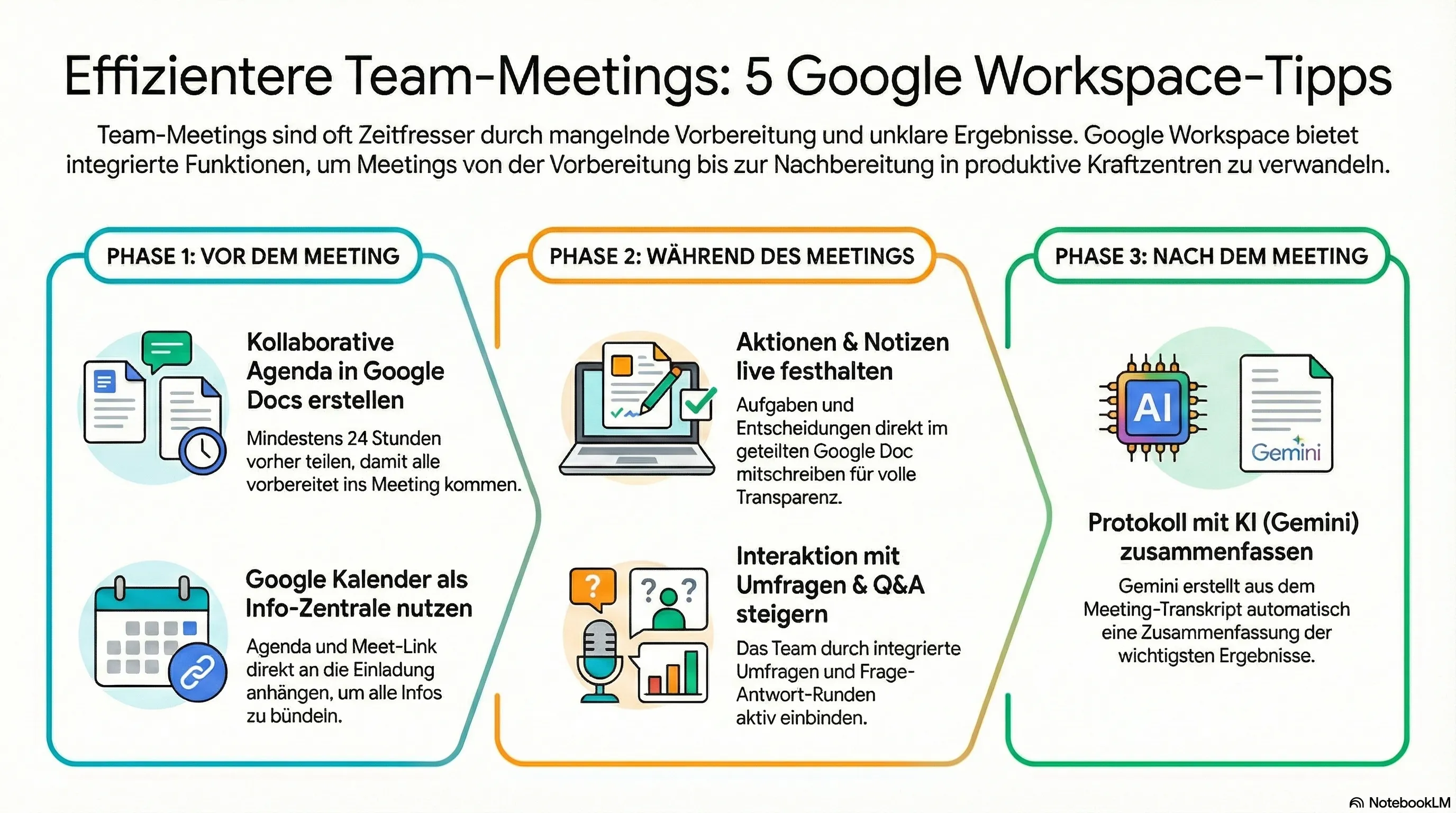
Tip 1: The Collaborative Agenda in Google Docs
A meeting without an agenda is like a ship without a rudder. Create a Google Doc as an agenda for each meeting and share it with all participants at least 24 hours in advance. The highlight: Make it collaborative! Everyone can add points, ask questions, or add comments. This way, everyone comes to the meeting prepared and the discussion starts immediately at a higher level.
Pro Tip: Use the ”@“-mention function in Google Docs to assign tasks directly to people or link to relevant files.
Tip 2: Use Google Calendar as an Information Hub
Your calendar invitation is more than just an appointment. It is the central point of contact for your meeting. Attach the Google Docs agenda directly, add the link to Google Meet, and write the main goal of the meeting in the description. This way, everyone has all the information in one place and doesn’t have to search for it in emails.
A well-prepared meeting is half the battle. The calendar invitation is your first step there.
Tip 3: Record Actions and Notes Directly in Google Meet
During the meeting, it is crucial to record decisions and tasks. Google Meet is deeply integrated into the Workspace. Use the function to link notes directly to the calendar entry, or use a companion app like Google Tasks or Keep. Even better: Designate a person to write down the most important points and to-dos live in the shared agenda in Google Docs. This creates transparency and nothing gets lost.
Tip 4: Polls and Q&A in Google Meet for More Interaction
Long monologues are the death of any creativity. Actively involve your team! Use the integrated polls in Google Meet to get quick mood checks or decisions. The Q&A function allows participants to ask questions without interrupting the flow of speech. These can then be answered collectively. This increases engagement and ensures that everyone is heard.
Tip 5: Summarize the Meeting Minutes with Generative AI (Gemini)
Follow-up is just as important as preparation. If you have the meeting transcribed in Google Meet, you can then ask Gemini in Google Workspace to create a summary of the most important decisions and assigned tasks from the transcript. This saves an enormous amount of time and ensures that all participants receive a clear and concise protocol.
An Insight into Our BOARDING Service
The tips shown here for more efficient meetings are part of our BOARDING Service. We show you how to establish these and other techniques for more productive collaboration. Learn more →
Do You Want to Exploit the Full Potential of Your Digital Tools?
Often it is small changes in daily routines that make the biggest difference. Let us analyze in a free conversation where your hidden potentials lie.
Topics in this article:
Was this article helpful?
Help us improve our content.